Quick Start Guide
Get started with Meshery in under 5 minutes. This guide will walk you through installing Meshery usingmesheryctl, starting the system, and accessing the UI.
Prerequisites: Ensure you have Docker or a Kubernetes cluster available. Meshery runs as a set of containers inside or outside of your Kubernetes clusters.
Install Meshery
Install mesheryctl
Install Verify the installation:
mesheryctl, the Meshery command-line client, using the official installation script:The installation script automatically detects your operating system and architecture, downloading the appropriate
mesheryctl binary.Start Meshery
Start Meshery with a single command. By default, Meshery deploys using Docker:This command will:Expected output:
- Pull the latest Meshery container images
- Start Meshery Server (port 9081)
- Deploy Meshery components
- Configure default settings
First-time startup may take a few minutes as container images are downloaded. Subsequent starts will be much faster.
Access Meshery UI
Once Meshery is running, open your browser and navigate to:You’ll be greeted with the Meshery login page. On first launch, Meshery uses the Local Provider for authentication.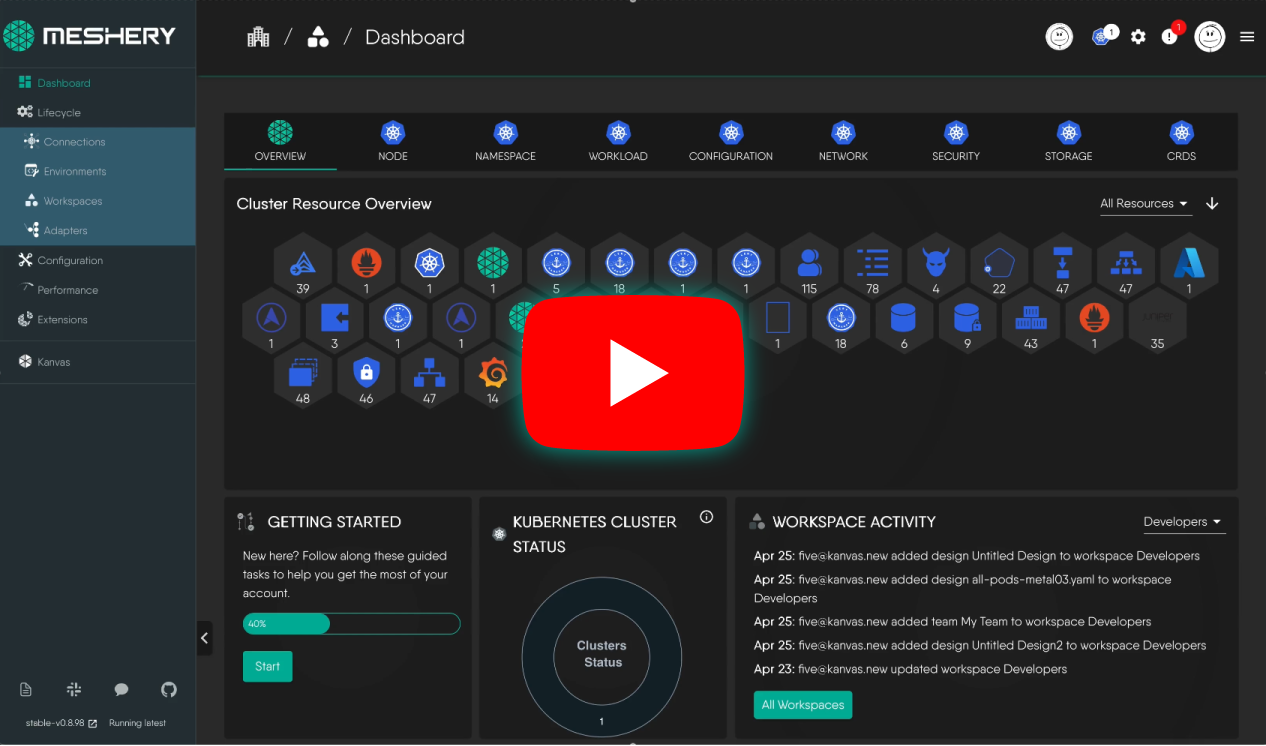
Connect a Kubernetes Cluster
To manage your infrastructure, connect a Kubernetes cluster:Alternatively, use
- In the Meshery UI, navigate to Settings → Connections
- Click + Connect Cluster
- Meshery will auto-detect your kubeconfig contexts
- Select the cluster you want to connect and click Connect
Meshery automatically discovers Kubernetes contexts from
~/.kube/config. You can also manually upload a kubeconfig file.mesheryctl to connect a cluster:Deploy Your First Integration
Now that you’re connected, let’s deploy your first integration:
- Navigate to Integrations in the sidebar
- Browse through 300+ available integrations
- Select an integration (e.g., Prometheus, Istio, NGINX)
- Click Deploy to install it on your cluster
Browse Catalog
Explore the Design Catalog for pre-built configurations
Design Visually
Use Kanvas to drag-and-drop components and design your infrastructure
Alternative Installation Methods
Deploy on Kubernetes
To deploy Meshery directly on a Kubernetes cluster:Deploy with Docker Compose
For manual Docker Compose deployments:Verify Installation
Check the status of Meshery components:Common Commands
Configuration
Meshery stores its configuration in~/.meshery/config.yaml. You can customize settings such as:
- Provider: Local or Remote Provider (e.g., Meshery Cloud)
- Kubernetes Context: Default cluster context
- Adapters: Service mesh and integration adapters
Troubleshooting
Meshery UI is not accessible
Meshery UI is not accessible
Verify that Meshery Server is running:Check if port 9081 is available:View logs for errors:
Cannot connect to Kubernetes cluster
Cannot connect to Kubernetes cluster
Verify your kubeconfig is accessible:Ensure the selected context is active:Check cluster connectivity:
Docker-related errors
Docker-related errors
mesheryctl command not found
mesheryctl command not found
Add Add this to your shell profile (
mesheryctl to your PATH:~/.bashrc, ~/.zshrc) to persist across sessions.Next Steps
Installation Guide
Explore detailed installation options for all platforms
Architecture
Learn how Meshery components work together
Integrations
Browse 300+ cloud native integrations
Community
Join the Meshery community on Slack
Pro Tip: Try the Cloud Native Playground to experiment with Meshery without any installation.